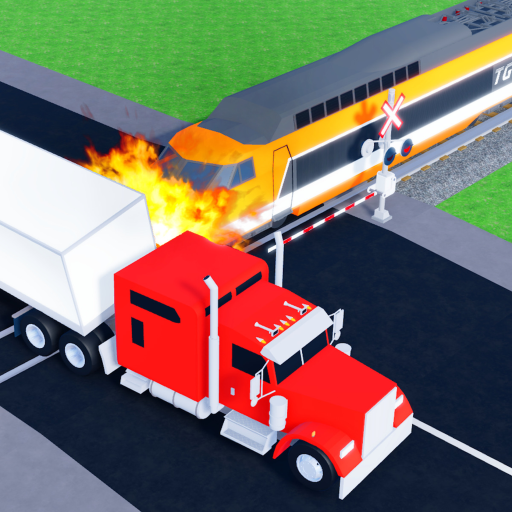
Confirm movement and camera first
Before chasing a crash outcome, make sure you can move, steer, adjust the camera, and recover from a failed route. This prevents confusing a control problem with a strategy problem.
- Test movement on a quiet route.
- Check whether camera angle changes affect your crash setup.
- Learn how to reset or return before longer attempts.
Treat interface labels as update-sensitive
Interface labels may change when the game updates. Verify the current UI before relying on an older screenshot or guide, and do not infer that a redemption interface exists.
- The current public official description does not verify a redemption menu path.
- Check settings if controls feel different from a video.
- Keep device-specific issues separate from game-specific issues.
Use controls to make better tests
The best crash notes come from repeatable attempts. Keep your camera, timing, and path similar so you can compare outcomes more clearly.